
Best Automatic Lyrics Transcription Software: Plain Text vs Timed LRC and SRT
Choosing lyrics transcription software depends on the final destination. Compare tools by timed output, editing control, privacy, language support and workflow fit, from rehearsal tracks and captions to karaoke videos and printed programmes.


The spring concert video is edited, the choir sounds settled, and the school wants it on the website by Friday. Then comes one last request from the head of department: captions, so parents can follow the words and no one in the audience is left out. You paste the lyric sheet into the video editor and meet the real problem. A block of plain text has no idea when the altos enter, when the soloist takes over, or how long the final chord holds.
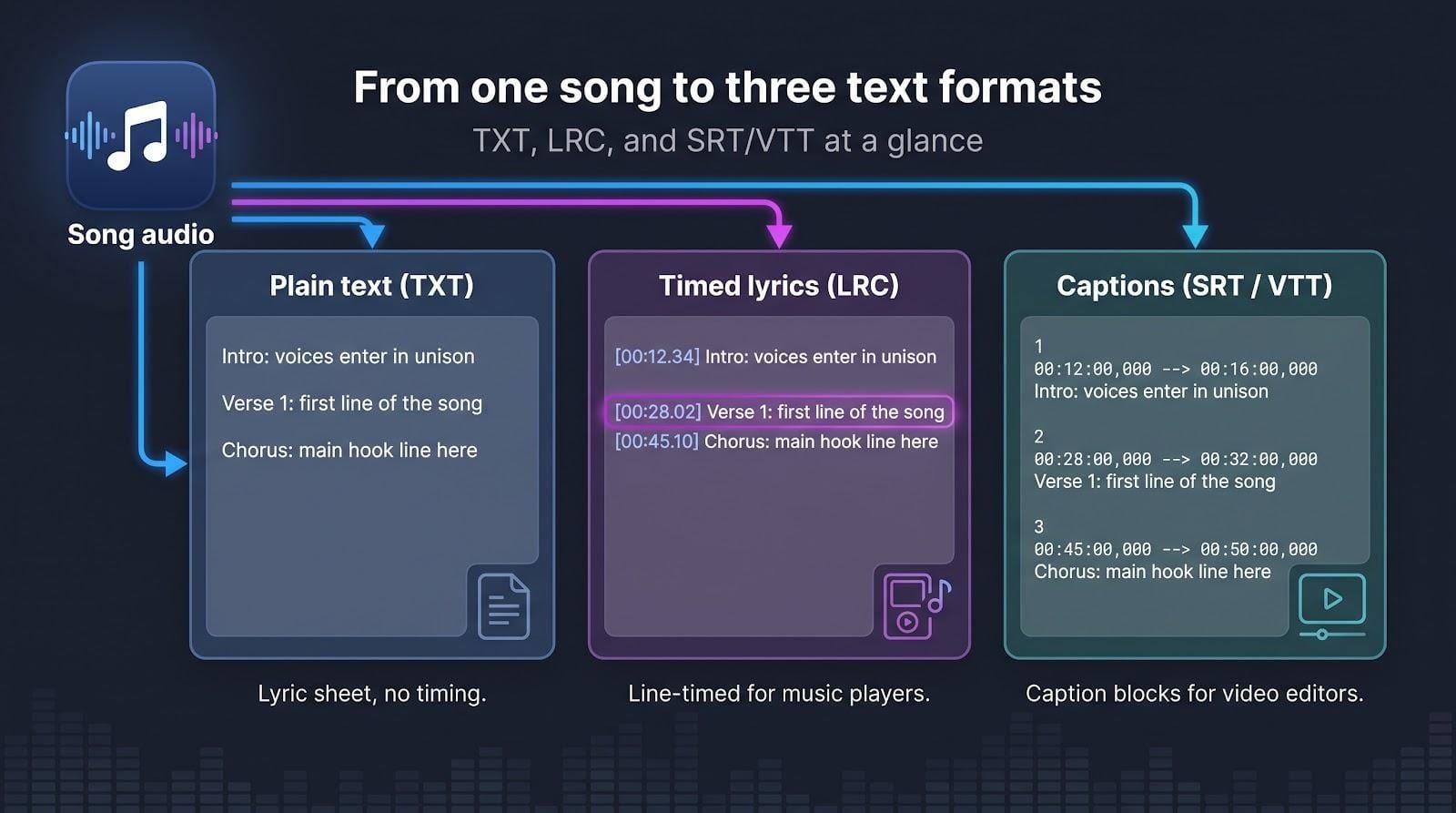
That gap between words and timing is what separates lyric transcription tools. Some give you a clean transcript and stop there. Others give you a timed file: LRC for the scrolling lyrics display in a music player, SRT for captions in a video editor or on YouTube. A few skip files altogether and burn the words into a finished video.
For music teachers, students and performers, the right choice depends on where the lyrics end up: a rehearsal track, a performance video, a karaoke night or a printed programme. Below are six options, sorted by the output they give you and by how easily you can correct them.
How We Chose the Best Lyrics Transcription Software
The tools were compared on five practical questions, using each product's own documentation and help pages.
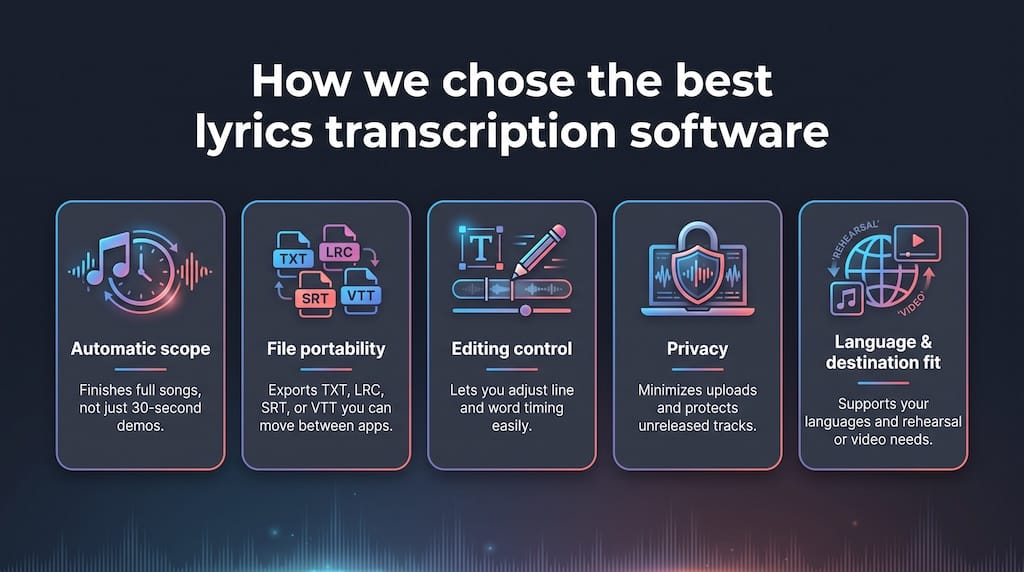
- Timed output. Does the tool produce a portable timed file such as LRC or SRT, or only plain text?
- Editing control. Can you correct individual words and move the timing before you export? Every automatic transcript needs some cleanup.
- Automatic scope. How much of the song does the tool transcribe automatically, and what do you do with the rest?
- Privacy. Local processing scores higher when a student recording or an unreleased piece must stay on your computer.
- Language range and destination fit. A choir director preparing captions needs different outputs than a creator who wants a finished lyric video.
Tools that make the corrected, timed file the centre of the workflow rank highest. Tools that transcribe a whole song but keep the timing locked inside their own app rank lower for this purpose, even when they are excellent in other ways.
Lyrics Transcription Tools at a Glance
Use the table to match each product to your preferred format, timing detail and privacy level.
1. Neural Frames Song to Lyrics: Best for Editable Timed Lyrics
Most tools in this list start from a transcript and treat timing as an afterthought. The Song to Lyrics tool from Neural Frames starts from the timing. It is built for one job: turning a recording into timed lyrics that you can correct line by line and then export as an LRC or SRT file.
You upload an MP3, WAV, M4A, FLAC or OGG file of up to 20 MB and 10 minutes. The tool automatically transcribes the first 30 seconds into editable lines. For the rest of the piece, you enter and time the lyrics yourself in the same editor, which suits a teacher who already has the words from the score or the lyricist. Because the editor accepts typed lyrics, the 30-second limit matters less than it first appears: the automatic pass sets up the format, and you finish the timing with words you already trust.
Every word is editable, and each line has a start time and an end time that you can adjust. Timing is per line, not per word. That fits captions and the scrolling lyrics display in a music player; karaoke-style word highlighting needs a different tool. When the lines sit where you want them, export LRC for a player or SRT for a video editor or a YouTube caption upload.
The interface supports English, German, Spanish, French, Italian, Portuguese, Japanese, Chinese and Korean. The tool gives no accuracy figures, and its own page warns that layered vocals and instrumental introductions can confuse the transcription, so read every line against your lyric sheet before export.
Know the limits. The tool does not publish lyrics to Spotify (synced lyrics there come through Musixmatch), and it does not romanize non-Latin scripts. Neural Frames' main platform turns a finished track into audio-reactive music videos; it does not generate music.
2. LyricTime: Best for Full-Song LRC, SRT and VTT
LyricTime is a browser-based editor that goes beyond short previews. Drop in an MP3 of up to 15 MB, wait a moment, and you get time-stamped lyrics that span the entire track.
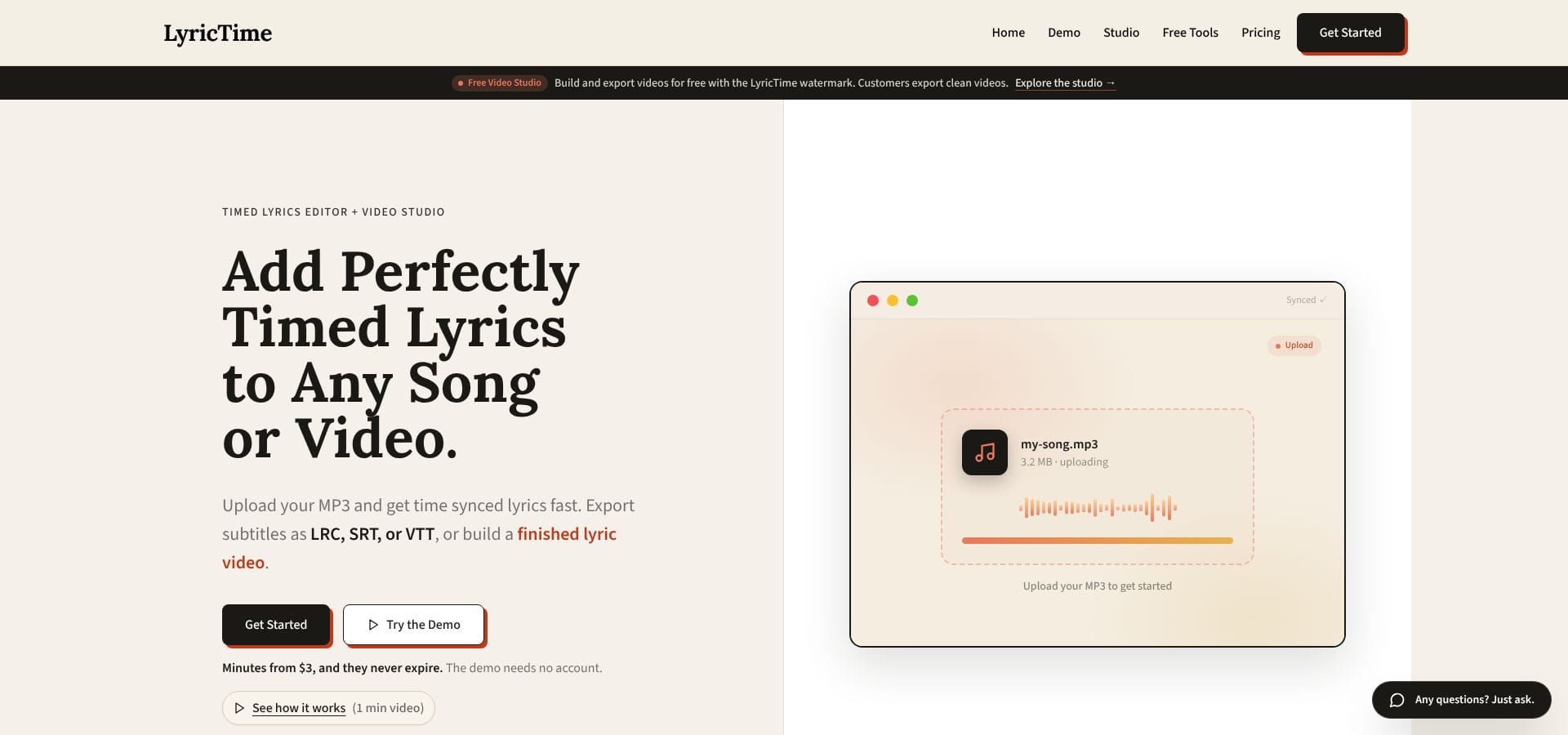
Inside the editor you can tighten an early pickup, stretch a held note or split a rushed phrase, with no extra software required. When the timing feels right, export an LRC, SRT or VTT file and move straight into your video editor, music player or learning management system.
Because everything runs in the cloud, the tool fits neatly into a Chromebook classroom, but your audio sits on remote servers. If school policy blocks uploads, the local option later in this list may fit better. Its help pages also explain what to do when every line lands slightly early or late, which usually points to one consistent offset rather than dozens of separate errors. Otherwise, LyricTime is a fast route to a fully timed, portable file for a whole song.
3. Moises: Best for Rehearsal and Teaching
Moises pairs word-synced lyrics with tempo, pitch, loop and chord tools, so singers and instrumentalists stay on the same page, literally.
Upload a track and the web or desktop app detects the language, separates stems and highlights each syllable as the music plays. Edit words or timing in the browser version, then slow the passage down or loop a tricky bar until it sticks. For a section leader who wants the tenors to hear their line in isolation, that combination is hard to beat.
Limits to note: free accounts can view only the first 60 seconds of lyrics, and the mobile apps do not yet support editing, according to the Moises help center. Moises also keeps synchronization inside its own app; its help center says there is no direct export option. You can copy plain text, but not an LRC or SRT file.
If your goal is sharper rehearsals rather than portable files, Moises still earns its place. Teachers who need downloadable captions should look at the other tools in this list.
4. Maestra: Best for Multilingual Text and Subtitle Workflows
Maestra's cloud editor transcribes and translates audio or video, and the company lists more than 125 languages. Upload an MP3, WAV or full video, and you get a time-stamped transcript that you can merge, split or punctuate as you listen.
Need written material? Export TXT for lyric sheets or DOCX and PDF for handouts. Need captions? Download an SRT or VTT file and drop it into Premiere, YouTube or a learning platform without processing the audio again.
Because Maestra is built for meetings and lectures as well as songs, expect to spend some time regrouping long vocal phrases into musical lines. If a concert programme spans several languages, or one upload must feed rehearsal packets, captions and accessibility copies, Maestra is a practical choice. A bilingual choir, for example, can caption the original text and add a translated set from the same upload, then decide which version each audience sees.
5. Youka: Best for a Finished Karaoke or Lyric Video
Youka skips sidecar files and delivers a ready-to-play MP4 at up to 4K resolution. Upload your track, let the engine detect or import the lyrics, then adjust word and line timing, pick fonts and add a background while the preview updates.
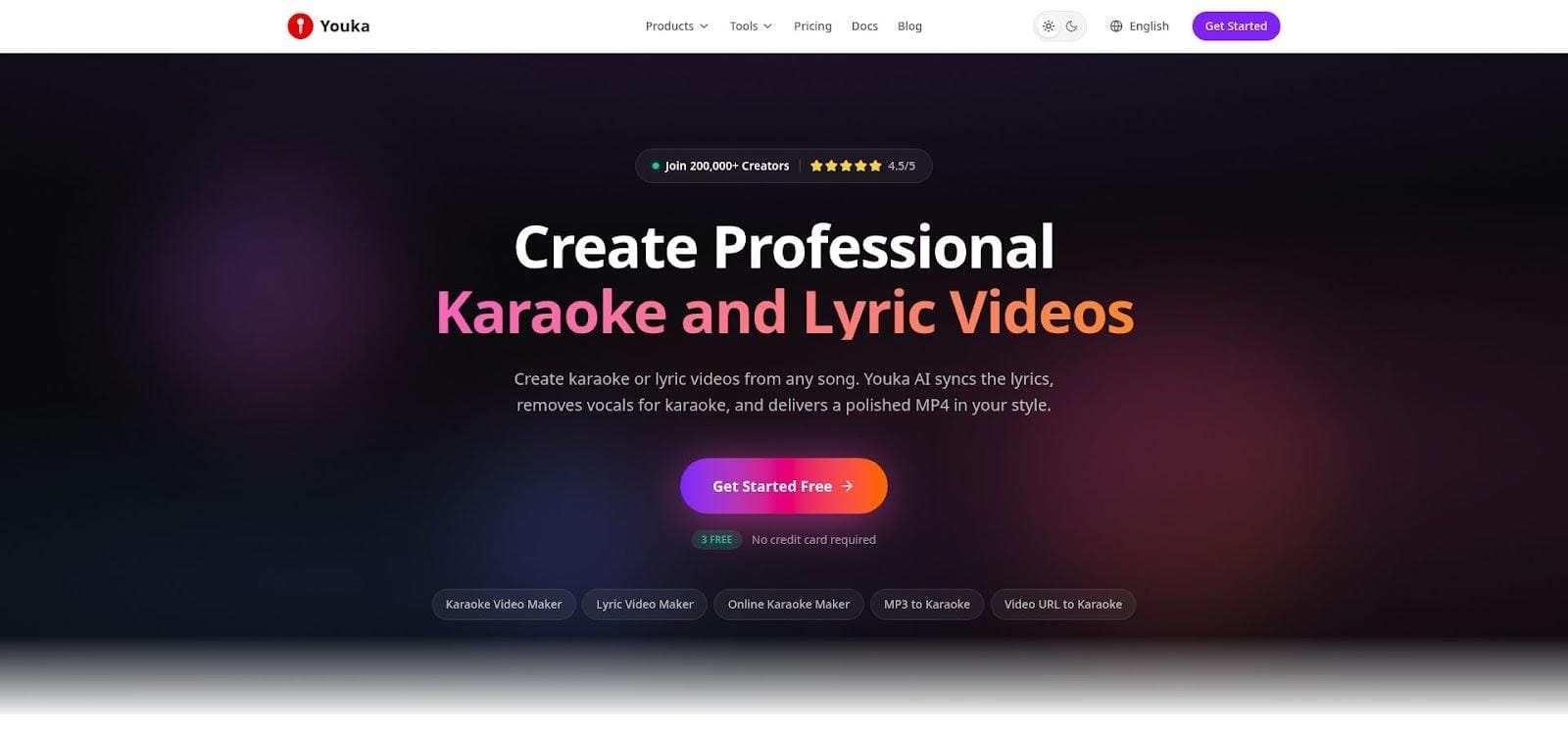
Render, and Youka burns the synced words into the video, ready for YouTube, a classroom projector or an open-mic night. If you need a portable LRC or SRT file, look elsewhere. Youka's strength is turning audio and lyrics into a finished visual in one pass. For a school talent show or a karaoke fundraiser, that removes a whole editing step.
6. Buzz: Best for Local TXT, SRT and VTT
Buzz is an open-source desktop app that runs OpenAI Whisper models on Windows, macOS and Linux, so recordings stay on your computer. Drop in an audio or video file, choose a model size and let the app transcribe in the background. Larger models are slower but tend to cope better with sung words than the smallest ones, so try one verse before you commit a whole concert recording.
When the text appears, you can turn word-level timings on or off, merge or delete segments, then export to TXT, SRT or VTT. That makes it a sensible choice for student performances, where consent and data rules often discourage cloud uploads.
Trade-offs: Buzz does not create LRC files, and because it is built for speech as much as song, you may need to regroup line breaks before sharing. For privacy-critical projects, it is still one of the strongest options.
How to Choose the Right Lyrics Format for Your Performance
Start with the destination, not the tool. A corrected caption file serves two audiences at once: viewers who watch with the sound off or rely on captions, and platforms such as YouTube that show the text in the player.
- Rehearsal tracks for singers: an LRC file in a music player, or Moises if you want tempo and loop controls and do not need a file.
- Performance videos and YouTube uploads: an SRT file from Neural Frames Song to Lyrics, LyricTime, Maestra or Buzz.
- A finished lyric or karaoke video: Youka.
- A multilingual programme or translated handouts: Maestra.
- Student or unreleased recordings that must stay local: Buzz.
If you are unsure, pick the tool that produces the file your destination reads, and treat every other feature as a bonus.
Before you export anything, run a short checklist. Read every line against the score, because automatic transcripts slip on held vowels, repeated refrains and overlapping parts. Confirm that you have permission to upload the recording, especially when it features students. Fix the timing before you style the text, since moving lines after the design is done doubles the work.
Frequently Asked Questions
What Is the Difference Between LRC and SRT Files?
Both are plain-text files that pair lyrics with timestamps. LRC gives each line a start time and is read by music players that scroll lyrics as the track plays. SRT gives each caption block a start and an end time and is read by video editors, YouTube and most learning platforms. If the lyrics will appear on a video, choose SRT.
Can Automatic Transcription Handle a Choir Recording?
Treat any automatic transcript as a first draft. Stacked parts, a reverberant hall and long instrumental introductions all make transcription harder, and several tools, Neural Frames included, say so on their own pages. The fastest workflow is usually to paste the words from the score and use the tool to set and adjust the timing.
Do I Need Word-Level Timing?
Only for karaoke-style highlighting, where each word lights up as it is sung. For concert captions, rehearsal tracks and lyric sheets, line-level timing is easier to read and quicker to correct. Youka and LyricTime offer word timing; Buzz can split output into one line per word for SRT and VTT.
Which Format Works Best for a Printed Concert Programme?
Plain text. Timestamps mean nothing on paper, so export TXT, or copy the corrected lines from any of these editors, and lay them out in your usual document software. Keep that corrected text as the master copy: if you later need captions for the concert video, it becomes the source for your SRT file.